Who Covers the Room Flip? Running a Multi-Op Event Day Through Lanes
Saturday, a 5 PM to 11 PM wedding. Your lead photographer arrives at 3:30 and shoots the ceremony. Your DJ and your lighting tech show up for the reception. The room gets flipped somewhere in between, and your lead takes a dinner break. On paper that's one event. In practice it's two or three people's days that have to fit together, and a question nobody wants to answer at 6:15: who's actually in the room right now?
The group text of call times
If you run more than one person on an event, you know the routine. Call times go out in a group text on Thursday. Somebody replies with a question about parking. The lighting tech's start time changes on Friday and the change lives in a reply three screens up. Or it's a shared spreadsheet with a tab per weekend that one person keeps current and everyone else screenshots.
Neither one tells you the thing you actually need to know: is there a stretch of the event when nobody from your company is scheduled? You find that out by reading every row and doing the math in your head. And neither one tells you what the crew is costing you on this booking.
Lanes is where that lives now in Zenvents360. It's the second view of an event's Run tab, next to Moments, and it shows up for businesses set up as a team rather than a single operator. A solo operator's Run tab shows Moments only, because a one-person lane isn't telling you anything. If you have an old bookmark to the event's Schedule tab, it opens Lanes.
One lane per person, framed by the event
Everyone assigned to the event gets a row: employees and subcontractors, each with their name, their role for the night, and a badge if they're the primary or a subcontractor. Across the top is the clock. Behind every row, the event's start and end are shaded as the event window, and the bottom row names the event with its times.
A person's day doesn't have to be one bar. Give your lead photographer two blocks: 3:30 PM to 6 PM with the note "Getting ready, ceremony," and 6:45 PM to 11:30 PM with "Reception." Each block has a start, an end and an optional note, and the note prints right on the bar. While you're editing someone's times, the drive to the venue sits underneath ("Travel to venue: 32 mins · 12 mi"), so you can set a realistic arrival without opening a map.
Sort the rows by start time, name or role. By start time, the chart reads top to bottom as the order people walk in the door.
The hatched band: where nobody is scheduled
Here's the part the group text could never do. Say your lighting tech is set for 7 PM to 11:30 PM. Your lead is off from 6 to 6:45 for the room flip and a meal. Lanes lays the lanes over each other, and any stretch of five minutes or more inside the event window where nobody assigned is scheduled gets a hatched band through every row. Above the chart it says it in words:
Now it's a decision, not a surprise. Move the tech's start to 5:45, shift the break, or decide the planner has the room during the flip and you're fine with it. The band goes away when the times cover it.
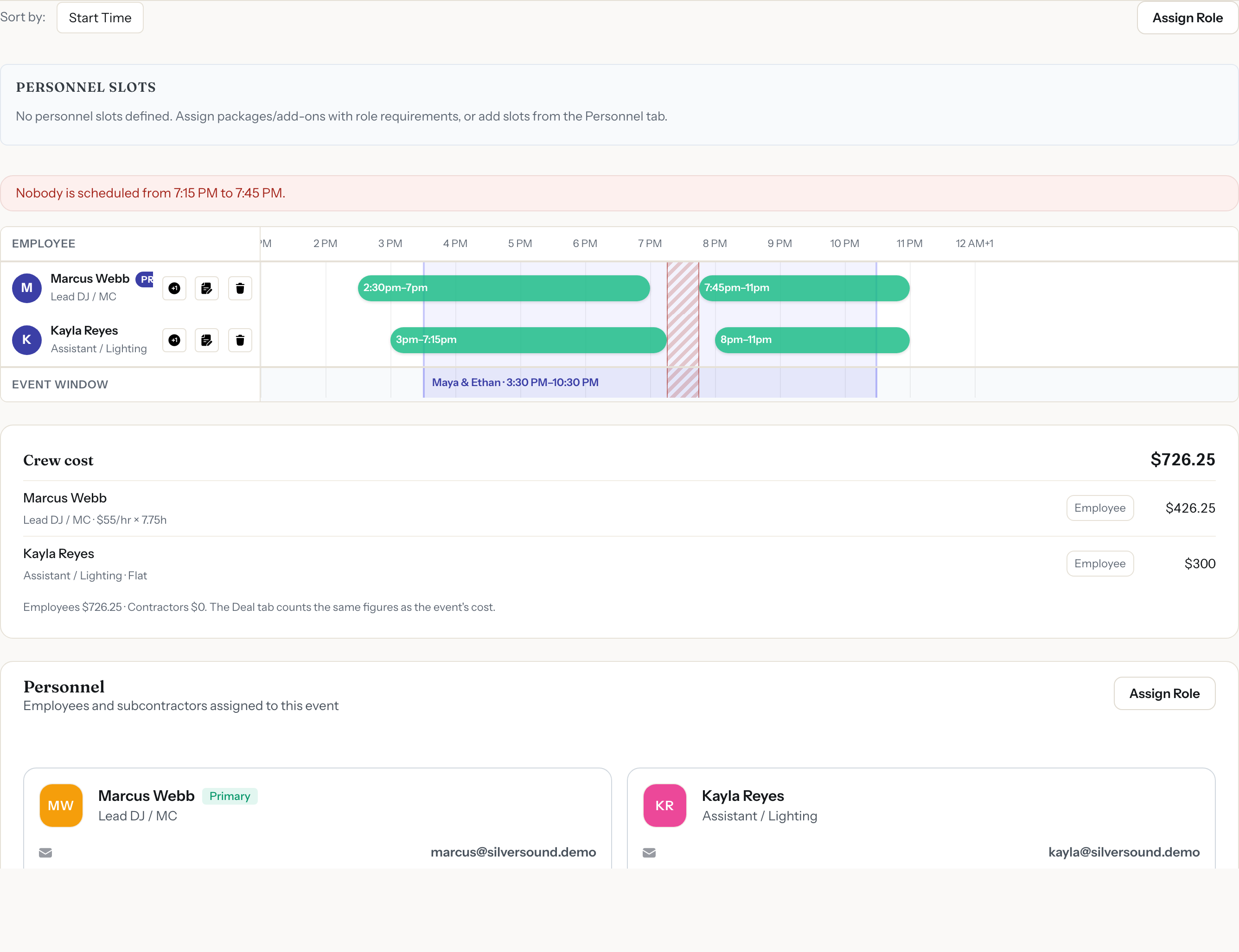
Lanes: one row per person, the event window behind them, and a hatched band where nobody is on
Five minutes is the floor on purpose. Times typed by hand don't always meet exactly, and a two-minute sliver between 6:43 and 6:45 is rounding, not a hole in your coverage.
Be clear about what it measures: people's scheduled times, not roles. It knows that nobody from your crew is on the clock from 6 to 6:45. It can't know that nobody is behind the camera or on the mic, because a role doesn't carry a "must be covered" rule. And it only starts once someone is assigned. An event with nobody on it doesn't get a wall of hatching, just an empty chart.
Open roles, filled by real people
Before anyone has a lane, there's the question of who's working at all. When a proposal is built from a package or add-on that lists roles (a lead photographer, a second shooter, a DJ, a lighting tech), those roles land on the event as open personnel slots. Lanes lists the ones still open, and Assign opens the assignment window with the role already filled in. Pick one of your employees, or switch to the subcontractor side and invite a contractor. Once the role is filled, the slot drops off the list, and when every one is filled it says so: All positions filled.
What the crew costs, next to the lanes
Under the chart, people who can see finances get a Crew cost card. Every employee on the event is listed with how they're paid and what it comes to:
- Hourly: the rate times the hours set for their pay, such as $25/hr × 6h. If you've set overtime for them, the hours past the threshold are paid at the overtime rate.
- Flat: the flat amount for the night.
- Percent: a percent of the payments received on the event so far, so it grows as the client pays.
The rate comes from the event first, then from the person's role, then from their own default, so you only override it on the nights that are different. Contractors are listed with the amount you agreed on their assignment, and whether it's paid yet.
At the top, the crew total. Say your lead is on a $450 flat, your tech is $25 an hour for six hours, and an uplighting contractor agreed to $300: the card reads $900, split into employees and contractors underneath. If a new hire doesn't have a rate yet, their line says Not set and the total reads $900+, a minimum rather than a number that looks finished and isn't.
These are the same figures the event's Deal tab counts as cost, read from the same place, so the number you see while you're staffing the night is the number your margin is worked out from. People without finance access see the lanes and none of the pay.

The Crew cost card: each person, how they are paid, and the total the Deal tab counts as the event's cost
Who can change the times
Editing times and adding or removing people are two separate permissions, checked on the server as well as on screen. Out of the box, the Full Access and Power Employee groups get both, and Restricted Employee sees the chart view-only, with a note that says so. So your lead can tighten the night's times while a newer crew member can see exactly when they're on without being able to move anyone. If your roles are set up differently, the two permissions go wherever you put them.
Why the ceremony and the toasts aren't on it
You might expect lines through every row for the ceremony, dinner, toasts and the last dance. We left them off on purpose. Those move on the day. The toasts run long, dinner service is late, the last dance gets pushed twenty minutes because the room is packed. A line pinned to a per-person chart would be wrong by 8 PM and you'd stop trusting the chart.
The fixed points are the event's start and end, so that's what Lanes draws, and it's what the coverage gaps are measured against. The moments themselves live in the event's timeline documents, where they're supposed to change.
Several crews on one Saturday
Lanes is one event. When you're running three weddings and a corporate party on the same Saturday, step back to the Calendar. Teams get a Day (Gantt) view that lays every event on that day out as its own row, with its times and venue, so overlapping events are readable at a glance. The Filter by Employee menu narrows the calendar to the events one person is assigned to, which is the fastest way to answer "is Marcus free for the 2 PM?" before you open any single event.

The Calendar's Day (Gantt) view: every event that day on its own row. Open one, and Lanes shows the people inside it.
Back on the event, the Moments side of Run groups everyone involved as Yours (your crew, contractors included), Theirs (the client's contacts) and The other vendors, each vendor marked Confirmed or Not confirmed for this event. Your crew's rows have an Open Lanes shortcut.
What to know before you rely on it
Honest limits, so nothing surprises you on a Saturday:
- Gaps are only as good as the times. Someone with no times of their own is drawn across the whole event window and counts as covering it. That includes subcontractors, whose times aren't set from Lanes. Give your employees their real times and the gaps mean something.
- The window is the event's start to end. Load-in before the start shows on the chart, but a gap is only measured inside the event window.
- People, not roles. Worth saying twice: it tells you nobody is scheduled, not that a particular job is uncovered.
Retire the call-time group text
Open any event with a crew on it, go to Run, and switch to Lanes. Give each person their times and see where the night has a hole.
Start Free Trial →Lou Paris
Founder of Zenvents360. 30+ years in the event industry. Built this because someone said he couldn't.