The Guest Count Changed on the Call. Did It Change in Your File?
Tuesday, a 40-minute planning call. Somewhere around minute 22, the guest count went from 140 to 165. Around minute 31, the venue coordinator mentioned load-in now opens at 2, not 3. Everyone nodded. The call ended, you jumped to the next one, and the event record still says 140 guests and a 3 PM load-in. You won't find out until the caterer asks, or until you're standing at a locked loading dock.
The call is the best record you have, and the hardest one to use
I've been working events for 30 years, and the planning call has always been where the real decisions happen. It's also where they go to get lost. Afterward you've got three bad options: rewatch the recording, scroll a 40-minute transcript looking for the part where somebody said "oh, one more thing," or retype your notes from memory and hope memory got it right.
The expensive part isn't the time. It's the one detail that changed on the call and never made it into the file. Zoom, Teams and Google Meet will all hand you a transcript now. What none of them knows is what your event record says, so none of them can tell you what just changed.
Drop the transcript on the note
Open the event and start a new note. Under the note's text there's a drop zone: drop a transcript or notes file, or choose one. It takes .txt, .vtt, .srt, .md, .docx and .doc. Here's where each meeting app puts it:
- Zoom: downloads the transcript as a .vtt file.
- Microsoft Teams: downloads it as .vtt, or as a .docx.
- Google Meet: saves the transcript as a Google Doc. Download it as .docx or .txt and drop that in.
Any other recorder that exports text works the same way, and so do your own rough notes. Or skip the file and paste the text straight into the note.
The file is read on our server and its text goes into the note. The file itself is never stored. And there's nothing to connect: no meeting app to link, no bot joining your calls. You download the transcript, you drop it in.
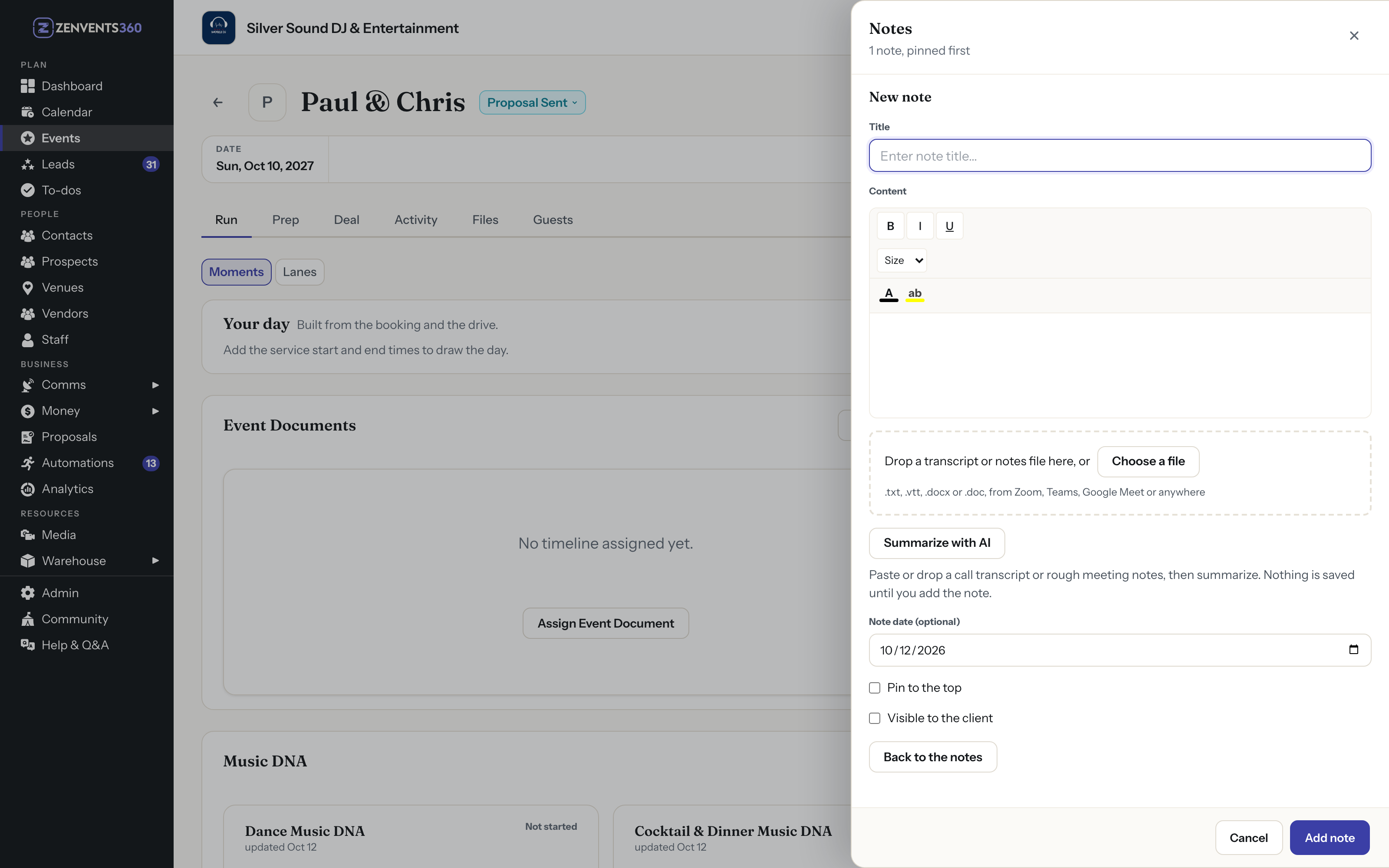
A new note on the event: drop the transcript, or choose it. The date starts as today.
A summary that already knows the event
Click Summarize with AI. The transcript goes to the model together with the event's own record: the date, the venue, the contacts, the timeline, the music lists and the rest of what you've saved. That's the difference between a generic meeting summary and one written for event work.
You get a short overview, then sections, and a section only appears when the call gave it something to say:
- Decisions: what was actually settled.
- Music: songs to play, songs not to play, and special songs with the moment they belong to. Empty when the call wasn't about music.
- Timeline and logistics: times, changes to the order, venue details, setup, and how to pronounce people's names.
- People and vendors: names, roles and any contact details mentioned.
- Differs from what is on file: every place the call doesn't match the event record, with both versions quoted.
- Open questions: what's still unresolved and the follow-ups, with who owns each one when somebody said so.
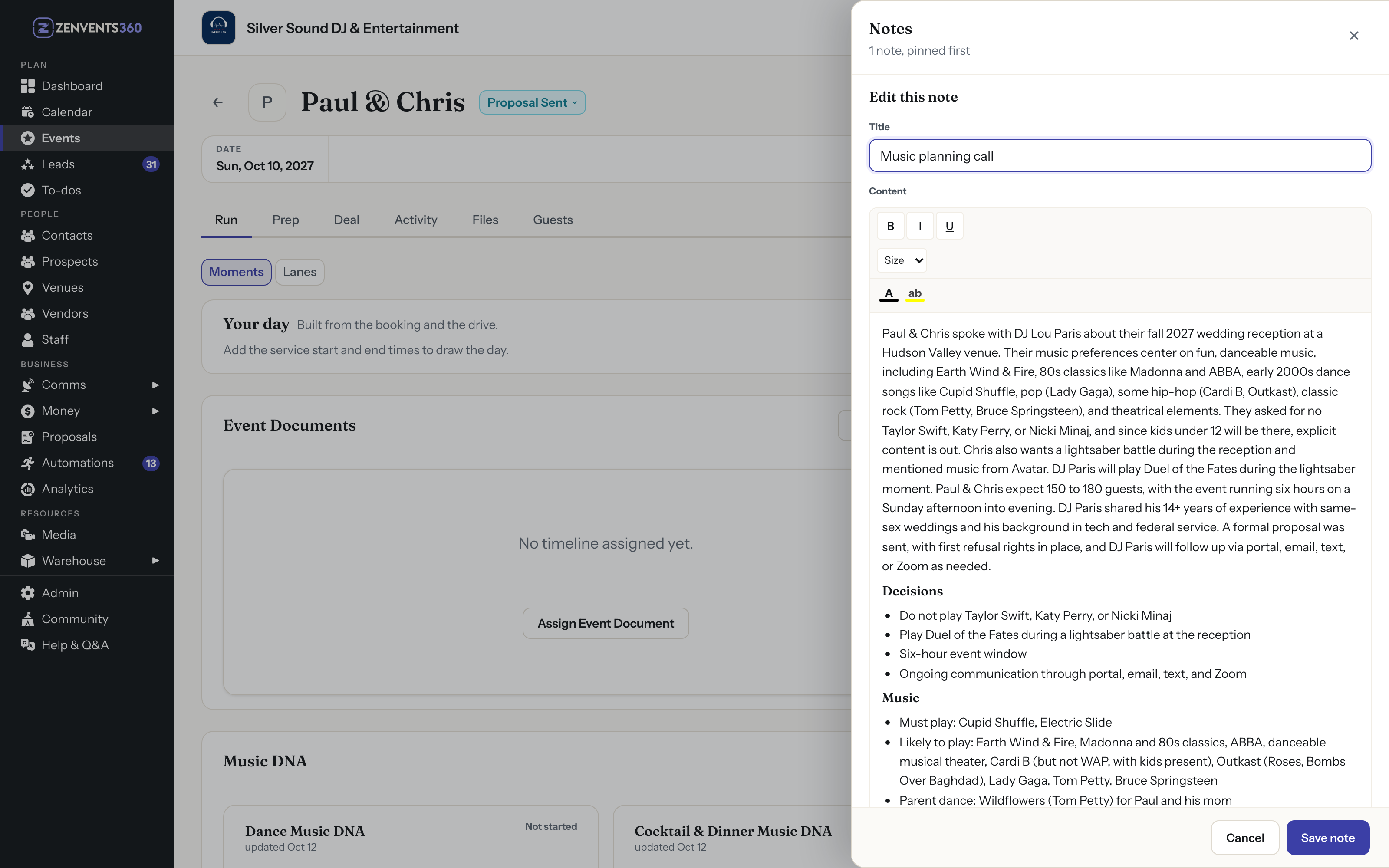
A real music planning call, summarized and open in the note editor. Names changed; shown on a demo event.
The section that pays for the whole thing
"Differs from what is on file" is the one I'd read first. Each line quotes the record and then the call, side by side:
Now the change is a to-do, not a surprise. Update the record, tell the caterer, move on. You didn't have to remember that 140 was the old number, because the summary had the record in front of it.
Whatever kind of call it was
Every event pro has their version of this call. A planner's final walkthrough, where the ceremony moved to the terrace. A florist's consult, where the centerpiece count came out of the conversation and not the order form. A caterer's tasting call, where two guests turned out to have allergies nobody had mentioned. A venue tour with the parking and load-in rules. An AV site visit where power and the setup window got pinned down. A DJ's music call, where the do-not-play list doubled. Same drop zone, same summary, and the Music section stays quiet when the call was about linens.
How it's written to behave
A summary you can't trust is worse than no summary, so the summarizer works to a short set of rules:
- Only what's in the notes. It's told not to bring in facts from the record that the call never mentioned, except to point out where the two differ.
- A maybe stays a maybe. "We might add a late-night snack" doesn't become a decision.
- Your spelling of names wins. When the transcript mangles a name, it prefers the spelling in the event record.
- Names or neutral words, not assumptions. It's written to refer to people by name, or as the couple, the client or their partner. It doesn't assume anyone's gender, and doesn't call anyone bride, groom, husband, wife or fiancé unless the transcript does.
Those are the rules it's written to follow, not a promise that it never slips. That's exactly why the next part matters.
Nothing is saved until you say so
The summary lands in the note editor, not in the event. Nothing is saved until you add the note. Switch between the summary and the original transcript with one click, edit either one, or discard the summary and keep the transcript. When you save the summary, the note is marked a meeting summary, so you can tell it apart from the notes you typed yourself.
What to know before you rely on it
Honest limits, so nothing surprises you:
- It doesn't join or record your calls. There's no Zoom, Teams or Meet connection. You download the transcript from your meeting app and drop it in.
- No PDF yet. Files up to 10 MB in the formats above.
- It counts toward your plan's monthly AI allowance. Dropping a file in doesn't; summarizing does.
- A summary of a transcript is only as good as the transcript. If the recording garbled a time, read the original before you change the record.
Catch what changed on the call
Download the transcript from your last planning call, open that event, start a new note, and drop the file in. Then click Summarize with AI and read what differs from your file.
Start Free Trial →Lou Paris
Founder of Zenvents360. 30+ years in the event industry. Built this because someone said he couldn't.