Ask Claude If You're Free on June 14. It Can Check Zenvents360 Now.
A lot of you already pay for Claude, and you use it to draft emails and think through a day. What it couldn't do was look at your own business. As of today it can: connect it to Zenvents360, and ask about your calendar, your clients and your money the way you'd ask a business partner.
What you can ask
The connector gives Claude five ways to look things up in your account. You don't pick them; you just ask, and Claude chooses.
- "Am I free on June 14?" It checks everything on that date, including the second day of a two-day event, and tells you what has it booked or held.
- "What do I have booked next month?" It finds events and leads by name, status, contact or date range.
- "Where are we with the Harper wedding?" One event in detail: the date, venue, main contact, the latest proposal, its readiness checks, and what is paid, owed and due next.
- "What's the phone number for Grace Harper?" Client search by name, email or phone.
- "Who still owes me money this month?" Payments received in a date range, and the unpaid milestones that fall due in it.
It works the same whether you're a planner checking a Saturday, a photographer looking at next month's shoots, a caterer chasing a final balance or a venue answering a date request.
What it can't do, on purpose
- It only reads. It can't change an event, send a message, book a date or move money.
- It answers as the person who made the key. If an employee can't see money in Zenvents360, Claude can't show it to them either. If they leave your business, their key stops working.
- It only sees the data you allow. When you make the key you choose what it may read: events, clients, payments, or any mix. A calendar-only key is a fine choice.
- It stays inside your business. Every answer comes from your own account, and every lookup is logged against the key.
Setting it up
In Zenvents360, go to Admin > Developer and create a key. Tick AI connector (MCP) and the data it may read. The form tells you which data gives Claude which answers.
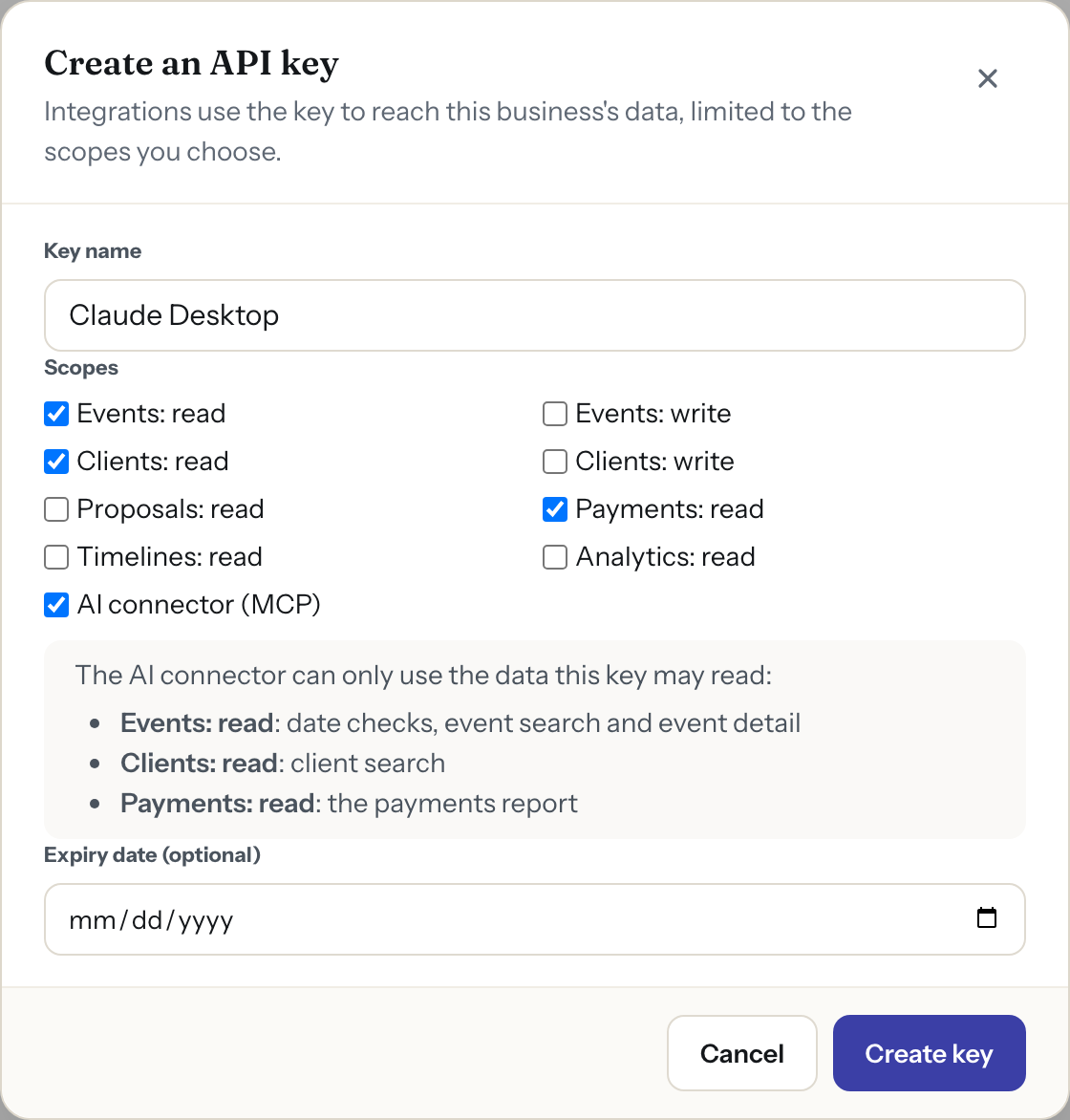
Tick the AI connector and the data it may read. The note spells out what each one gives Claude.
The same page has copy-and-paste setup for each app:
- Claude Desktop on Mac or Windows: paste a short block into its settings, then quit it fully (Cmd+Q on a Mac) and reopen it. It needs Node.js installed. Keep the word Bearer in front of your key exactly as shown; I left it out on my own first try, and Claude only told me the server failed to start.
- Codex, including Codex in the ChatGPT desktop app: three lines in its settings file.
- Claude Code: one command.
Treat the key like a password. If you ever lose track of where it went, revoke it on the same page and make a new one.
What isn't ready yet
Claude.ai in a web browser, the Claude and ChatGPT phone apps, and regular ChatGPT chat can't connect yet. Those ask for a sign-in step we haven't built, so for now it's the desktop apps above. I'll post here when that changes.
The AI connector is included on every paid plan. During the free trial you can look at the setup page, and the connector itself switches on when you subscribe. The AI assistants built into Zenvents360 are still on every plan, trial included.
Already on a paid plan?
Open Admin > Developer, make a key with the AI connector, and ask Claude what your next free Saturday is.
Set Up the AI Connector →Lou Paris
Founder of Zenvents360. 30+ years in the event industry. Built this because someone said he couldn't.